
Installation & setup
How to Download MT5 for iPhone? iOS Installation Guide
This guide explains how to download MT5 for iPhone and iPad, install MetaTrader 5 from the App Store, open the app after installation, and troubleshoot common download, install, and login issues for beginners.
MT5 for iPhone is the mobile version of MetaTrader 5 for iPhone and iPad devices. You can install MT5 on iPhone to view quotes, open charts, log in to accounts, review trade history, and perform related trading operations.
Compared with the desktop version, MT5 for iPhone is better suited to mobile use. When you are away from your computer, you can check account status, watch market moves, browse charts, or review history on your phone. For beginners, the iPhone version has a relatively focused layout—good for learning basic screens and account login before exploring more features.
The official MetaTrader 5 page states that users can install the mobile app on iPhone or iPad and download it through the App Store. The App Store listing shows MetaTrader 5 is provided by MetaQuotes Software Corp. and currently requires iOS 15.0 or later.
This guide follows a beginner-friendly order: where to download MT5 for iPhone, how to install it, what to check after installation, and how to troubleshoot issues such as failed downloads, apps that will not open, or login failures.
Who is MT5 for iPhone suited to?
MT5 for iPhone suits users of iPhone, iPad, or iPod touch. The main advantage of mobile is portability—you can check quotes, account status, charts, and trade history anywhere.
If you need long multi-chart analysis sessions, the desktop version is a better fit. If you mainly want to check quotes, log in, review positions, or browse history on your phone, the iOS version is more convenient.
MT5 for iPhone is typically suited to:
- Users of iPhone or iPad.
- Users who want to check quotes and account status on the go.
- Users who need basic K-line charts and indicators on mobile.
- Users who already use the desktop version and want a phone companion.
- Beginners who want to learn MT5 basics on a demo account first.
Note that screen space is limited on phones—it is not ideal for many charts or complex window layouts at once. For fuller chart analysis, also learn the MT5 desktop version.
Where can you download MT5 for iPhone?
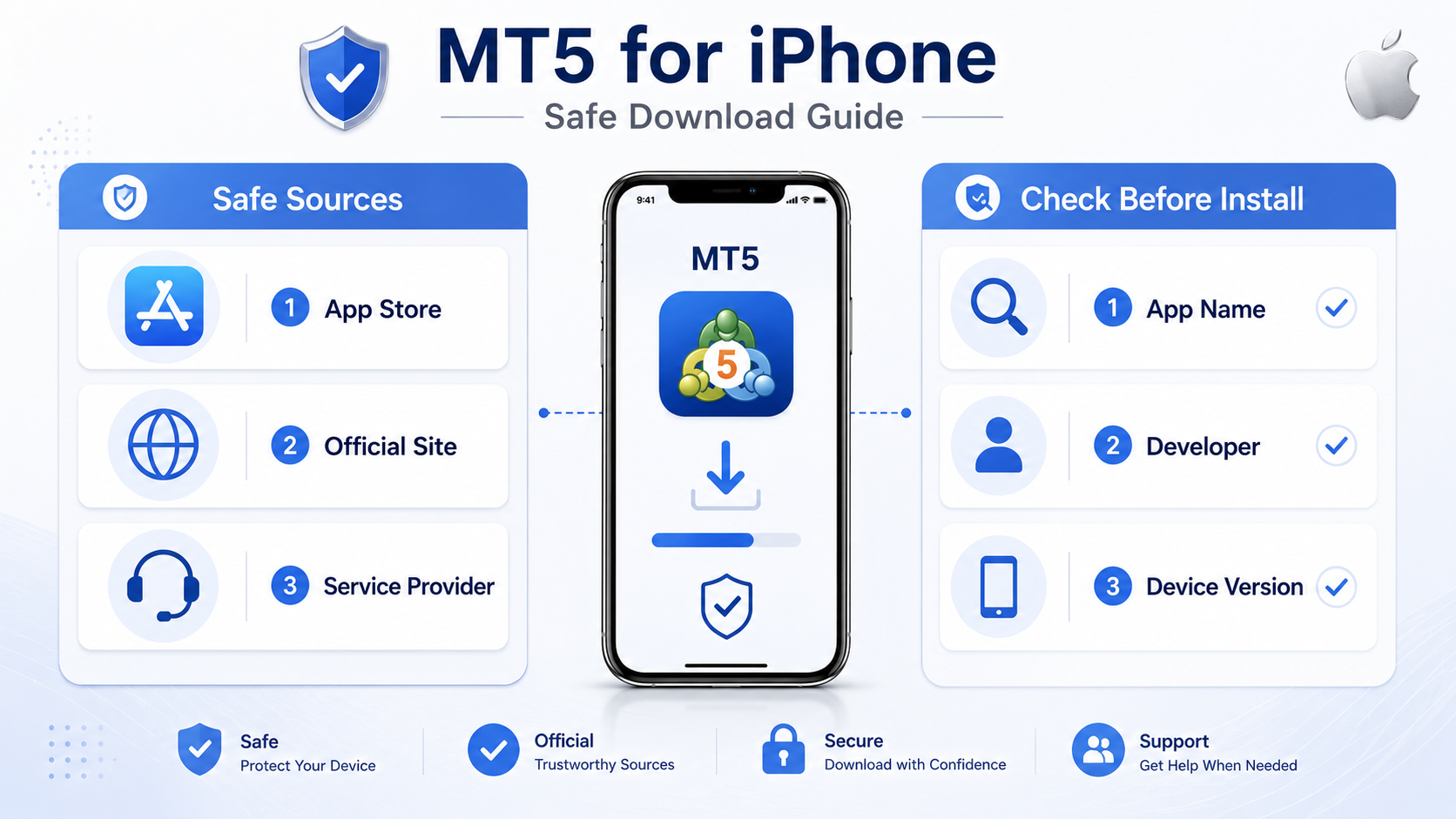
MT5 for iPhone is mainly downloaded through the Apple App Store. On iPhone or iPad, open the App Store, search for “MetaTrader 5” or “MT5”, and install the app provided by MetaQuotes Software Corp. The App Store lists it under Finance.
You can also reach the iOS download entry from the official MetaTrader 5 download page. The official page explains that users can install the mobile app on iPhone or iPad and download the MetaTrader 5 iOS version.
If you already have an account, your broker or service provider may offer an MT5 download page that links to the App Store, sometimes with server and login guidance.
MT5 is trading terminal software—not a broker and not a trading account. MetaQuotes is a software company and does not provide investment or brokerage services. Downloading and installing MT5 only prepares the app; whether you can log in depends on your account, password, server name, and permissions.
What should you prepare before downloading MT5 for iPhone?
Before downloading MT5 for iPhone, confirm these basics:
Confirm device and OS version
Confirm you are using an iPhone or iPad. The App Store listing shows MetaTrader 5 requires iOS 15.0 or later; iPad devices need iPadOS 15.0 or later.
If the OS is too old, you may see download failures, update issues, or incompatibility. Check your iOS version in Settings before installing.
Confirm the App Store works
MT5 for iPhone is usually installed via the App Store. Make sure your Apple ID is signed in and the store can search and download apps.
If the App Store will not open, search, or download, resolve Apple ID, network, region, or payment verification issues first.
Confirm network connectivity
Downloading, installing, logging in, and connecting to servers all need a stable network. Poor connectivity can cause failed downloads, slow server loading, missing quotes, or login errors.
Use stable Wi-Fi or mobile data for download and install. If you cannot connect after install, try switching between Wi-Fi and cellular data.
Prepare account details
If you plan to log in after install, have your login, password, and server name ready.
You can also install first and explore the interface without logging in—check the bottom menu, quotes, charts, and settings before connecting an account.
How to download MT5 for iPhone
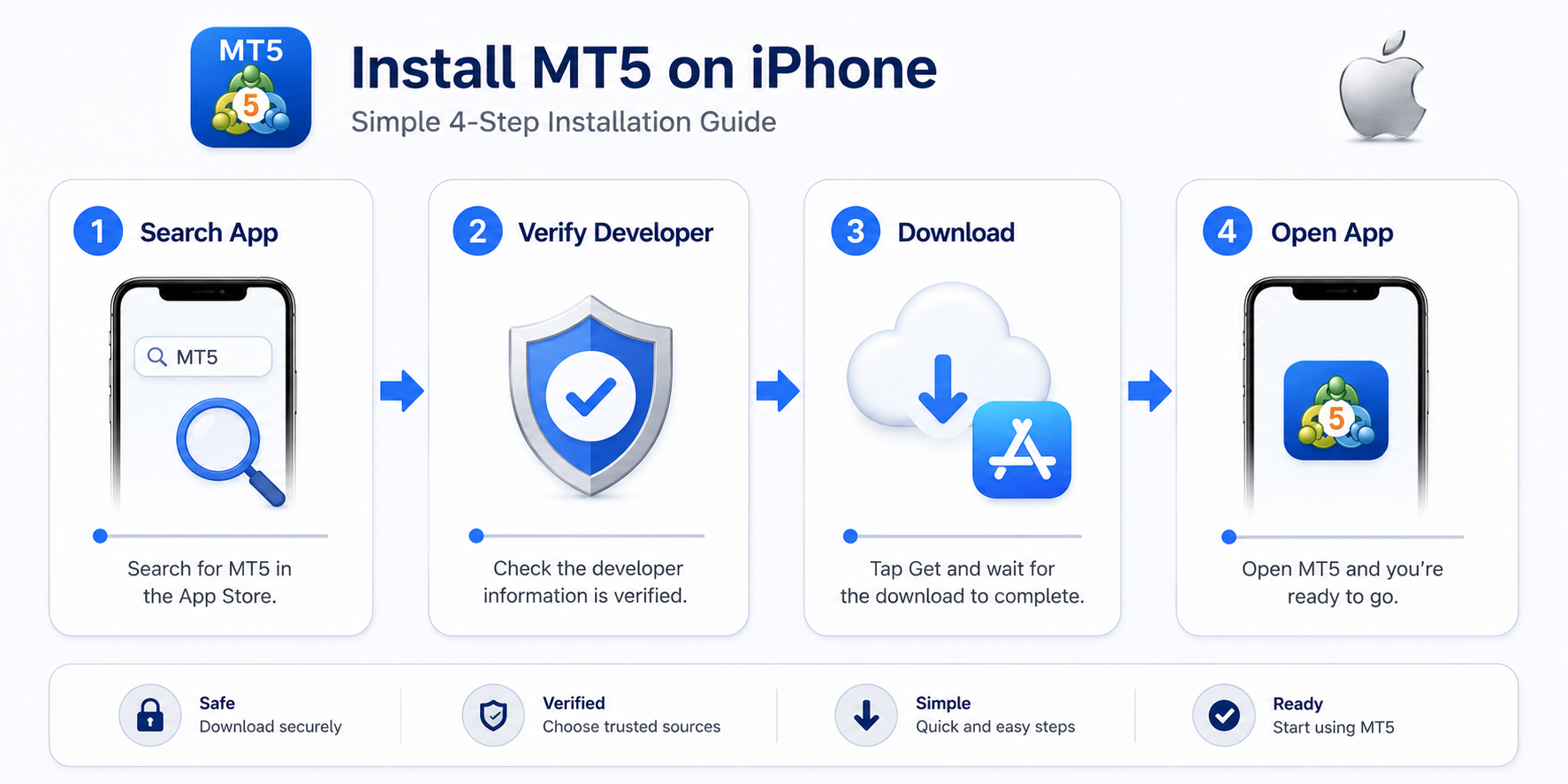
Step 1: Open the App Store
On iPhone or iPad, open the App Store. Use the built-in store to search—avoid untrusted web redirects.
If you start from the official MetaTrader 5 page, you should still end up on the App Store to complete installation.
Step 2: Search for MetaTrader 5
In the search box, enter “MetaTrader 5” or “MT5”.
Similar app names may appear. Confirm the app name is MetaTrader 5 and the provider is MetaQuotes Software Corp.
Step 3: Tap Get or Download
After confirming the app details, tap Get or the download button. You may need Face ID, Touch ID, or your Apple ID password.
If you installed it before, the button may show a cloud icon—tap to re-download.
Step 4: Wait for installation
When the download finishes, the MetaTrader 5 icon appears on your Home Screen or in the App Library. Tap the icon to launch the app.
If you do not see the icon, search “MetaTrader 5” in the App Library or system search.
How to install MT5 for iPhone
On iPhone, installation is handled automatically by the App Store—you do not run a separate installer like on desktop.
Step 1: Confirm the App Store download completed
After you tap download, iOS installs the app automatically. Avoid closing the App Store repeatedly or tapping download multiple times.
If it stays on “Waiting”, check network, Apple ID status, and free storage.
Step 2: Find the app on Home Screen or App Library
After installation, look for MetaTrader 5 on the Home Screen, App Library, or via Spotlight search.
If it is missing, the download may still be in progress, or the icon may be inside a folder or only in the App Library.
Step 3: Open MT5 for iPhone
Tap the MetaTrader 5 icon. On first launch you may see options to log in, open a demo account, or connect an existing account.
Step 4: Allow notifications if needed
iOS may ask whether to allow notifications. Enable them if you want price alerts or account messages; you can change this later in Settings.
What to check after installation
After installing MT5 for iPhone, run these basic checks:
Check that the app opens
Tap the MetaTrader 5 icon and confirm the app launches. If not, restart iPhone, check OS version, or reinstall from the App Store.
Check network connectivity
If the app opens but servers, quotes, or login fail, test your connection. Try Wi-Fi and cellular data.
Check main screens
Browse the main areas. The App Store description notes real-time quotes, charts, trade history, indicators, and drawing tools on iOS.
Beginners can start with quotes, charts, trade, history, and settings before exploring everything.
Check whether you need to log in
If you have an account, log in with your credentials. If not, explore demo options or the interface first.
A successful install does not guarantee login—you still need the correct account, password, and server name.
MT5 for iPhone main screens overview
After installation, get familiar with these main areas:
Quotes
Shows instrument prices. Available symbols depend on your account and server.
If a symbol is missing, add it in symbol management—do not assume the app is broken before checking account and server support.
Charts
View price action and candlesticks. The App Store notes interactive real-time charts with zoom and scroll.
Start by opening a chart, switching symbols, and changing timeframes before adding many indicators.
Trade
Review account status, positions, and orders—balance, equity, open positions, or pending orders.
History
Review completed trades and account history—useful when troubleshooting past activity.
Settings
Adjust app options, messages, logs, and other entries. Useful for language, notifications, and connection issues.
How to log in to your account on MT5 for iPhone
After installation, logging in usually requires three fields: login, password, and server name.
Login and password come from your broker or provider. The server name must match your account—wrong server choice can block login even with correct credentials.
When logging in, confirm:
- The login number is complete.
- The password is correct, including case.
- The server name matches your account.
- You did not pick a demo server instead of live (or vice versa) by mistake.
- Your phone network can reach the server.
Login failure does not always mean MT5 failed to install—check credentials, server, and network first.
What if MT5 for iPhone fails to download?
If download fails, check the following:
Check iOS version
An outdated iOS may block the current MetaTrader 5 build. The App Store requires iOS 15.0 or later. Update iOS if your device supports it.
Check Apple ID and App Store
Verify Apple ID sign-in, region restrictions, payment verification, and general App Store access.
Check storage space
Low storage can block downloads. The listing shows about 35 MB, but install and cache need additional free space.
Check network
Unstable networks can cause long waits or interrupted downloads. Switch Wi-Fi or cellular and retry.
Check App Store region and search
If MetaTrader 5 does not appear, review store region, keywords, and device compatibility. Use the official download page for the iOS entry.
What if MT5 for iPhone will not open after download?
If the app will not open after install, try:
- Restart iPhone and open the app again.
- Confirm installation completed fully.
- Check iOS version meets requirements.
- Free up storage and retry.
- Check Screen Time or other system restrictions.
- Delete the app and reinstall from the App Store.
If the app opens but shows no connection or login fails, troubleshoot network, server, and account details instead of reinstalling repeatedly.
How is MT5 for iPhone different from the Android version?
Both are mobile MT5 builds for quotes, charts, account status, and history on phones or tablets.
The main differences are OS and download channel: iPhone/iPad via the App Store; Android via Google Play, official APK, or other Android channels.
Choose the version for your device. iPhone users follow this guide; Android users can read How to Download MT5 for Android?. Login logic is similar—account, password, and server must all match.
Tips for beginners downloading MT5 for iPhone
When downloading and installing MT5 for iPhone:
- Prefer the App Store or the official MetaTrader 5 download page.
- Confirm the app name is MetaTrader 5.
- Confirm the provider is MetaQuotes Software Corp.
- Check iOS or iPadOS version before installing.
- After install, confirm the app opens normally.
- Prepare login, password, and server before connecting an account.
- Successful install does not guarantee login will work.
- When issues arise, decide whether it is a download, install, launch, or login/connect problem.
Following these steps reduces download errors, login failures, and confusion.
FAQ
Is MT5 for iPhone free?
MT5 for iPhone is usually free to download. The official MetaTrader 5 iPhone/iPad page states the app is free to use and available on the App Store. Whether you can log in, view certain instruments, or use specific features depends on your broker or service provider account and permissions.
Can I trade immediately after downloading MT5 for iPhone?
Not necessarily. Installing MT5 only prepares the software. The App Store listing also notes that live trading with real funds requires opening a live account with a financial company or broker separately. You still need a valid account and correct login, password, and server details.
What if I cannot find MT5 on my iPhone?
Check your App Store region, device OS version, and search keywords. You can also use the official MetaTrader 5 download page to reach the iOS version.
Does MT5 iOS installation failure mean my phone is unusable?
Not necessarily. Failures are often caused by iOS version, Apple ID, App Store status, network issues, or storage space. Troubleshoot step by step.
What if I cannot log in to MT5 on iPhone?
Login issues usually relate to account credentials, server name, or network connectivity. Verify your login details, confirm the server matches your account, then check your mobile connection.
Usage note
This article focuses on downloading and installing MT5 for iPhone and is intended for first-time mobile users.
MT5 is trading terminal software for quotes, charts, and related operations. It is not a trading account and does not provide investment advice or return guarantees. Use any trading software and services with caution and at your own risk.
If you use Android, see How to Download MT5 for Android? Android Phone Installation Tutorial. For Windows, see How to Download MT5 Desktop? Windows Installation Tutorial.