
Setup & environment
How to Download MT5 for Android? Android Phone Installation Tutorial
This guide explains how to download MT5 for Android, install MetaTrader 5 on your phone, open the app after installation, and troubleshoot common download, install, and login issues for beginners.
MT5 for Android is the mobile version of MetaTrader 5 for Android phones and tablets. After installing it on your device, you can view quotes, open charts, log into accounts, check account status, and perform related trading operations.
Compared with the desktop version, MT5 for Android is better suited to everyday mobile use. When you are away from your computer, you can check price moves, connection status, charts, or history on your phone. For beginners, the mobile app keeps main actions in a compact layout, but screen space is limited—so start with core features before exploring advanced settings.
This article follows a beginner-friendly order: where to download MT5 for Android, how to install it, what to check after installation, and how to troubleshoot issues such as failed installs, apps that won’t open, or login failures.
Who is MT5 for Android suited to?
MT5 for Android is designed for users with Android phones or tablets. Official documentation states that MetaTrader 5 for Android lets you connect to a broker’s server from a mobile device, view quotes, analyze charts, and perform related trading operations.
If you mainly do long chart sessions on a computer, the desktop version is a better fit. If you want to check quotes, log in, review positions, or browse history on your phone, the Android version is more convenient.
MT5 for Android is typically a good match for:
- Users with Android phones or tablets.
- Anyone who wants to monitor quotes and account status on the go.
- Users who need basic candlestick charts and indicators on mobile.
- Desktop users who also want a phone companion app.
- Beginners who want to practice with a demo account first.
Mobile is convenient, but it is not ideal for many charts open at once or complex window layouts. For a fuller analysis setup, also learn the MT5 desktop version.
Where can you download MT5 for Android?
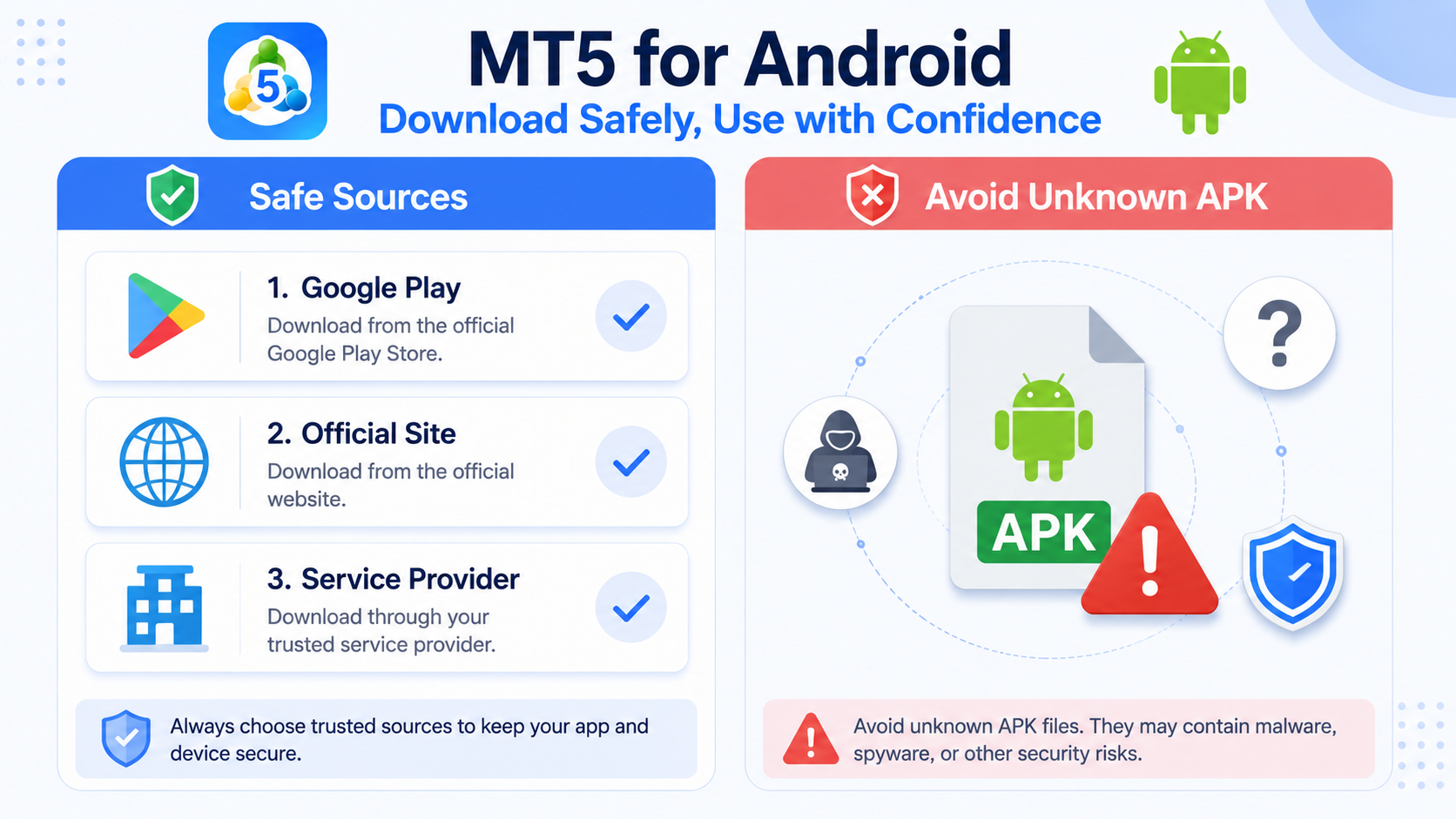
There are three common ways to get MT5 for Android.
First, via Google Play. MetaTrader 5’s official Android help explains that you can download the app from Google Play or search for it inside the Play Store app on your device.
Second, via the official MetaTrader 5 download page. It offers Android download options, including APK and related entries for different Android devices.
Third, through a download link provided by your broker or account service provider. Some brokers host their own MT5 download pages, which can make it easier to find the matching server after installation.
MT5 is trading terminal software—not a broker and not a trading account. MetaQuotes is a software company and does not provide brokerage or investment services. Downloading and installing MT5 only prepares the app; whether you can log in depends on your account number, password, server name, and permissions.
What to prepare before downloading MT5 for Android
Before downloading, confirm these basics.
Confirm your phone OS
Make sure you are using an Android phone or tablet. If the OS is too old, you may see failed installs, update errors, or unstable performance.
Official Android help states that you should install MetaTrader 5 from Google Play and then tap the icon to launch it. If the store says your device is incompatible, check OS version, store region, or device environment.
Confirm network connectivity
Downloading, installing, logging in, and connecting to servers all require a network. Unstable connectivity can cause failed downloads, slow server loading, stale quotes, or login errors.
Use stable Wi-Fi or mobile data for download and install. If you cannot connect after installation, try switching between Wi-Fi and mobile data.
Confirm a reliable download source
Because MT5 handles account login and trading operations, use trusted sources: Google Play, the official MetaTrader 5 site, or your broker’s download page.
Avoid unknown installers, modified apps, or repackaged third-party builds. Clear, official sources make troubleshooting easier later.
Prepare account details
If you plan to log in after installation, have your account number, password, and server name ready.
If you only want to explore the interface first, you can skip login and review the bottom menu, quotes, charts, and settings before learning account connection.
How to download MT5 for Android
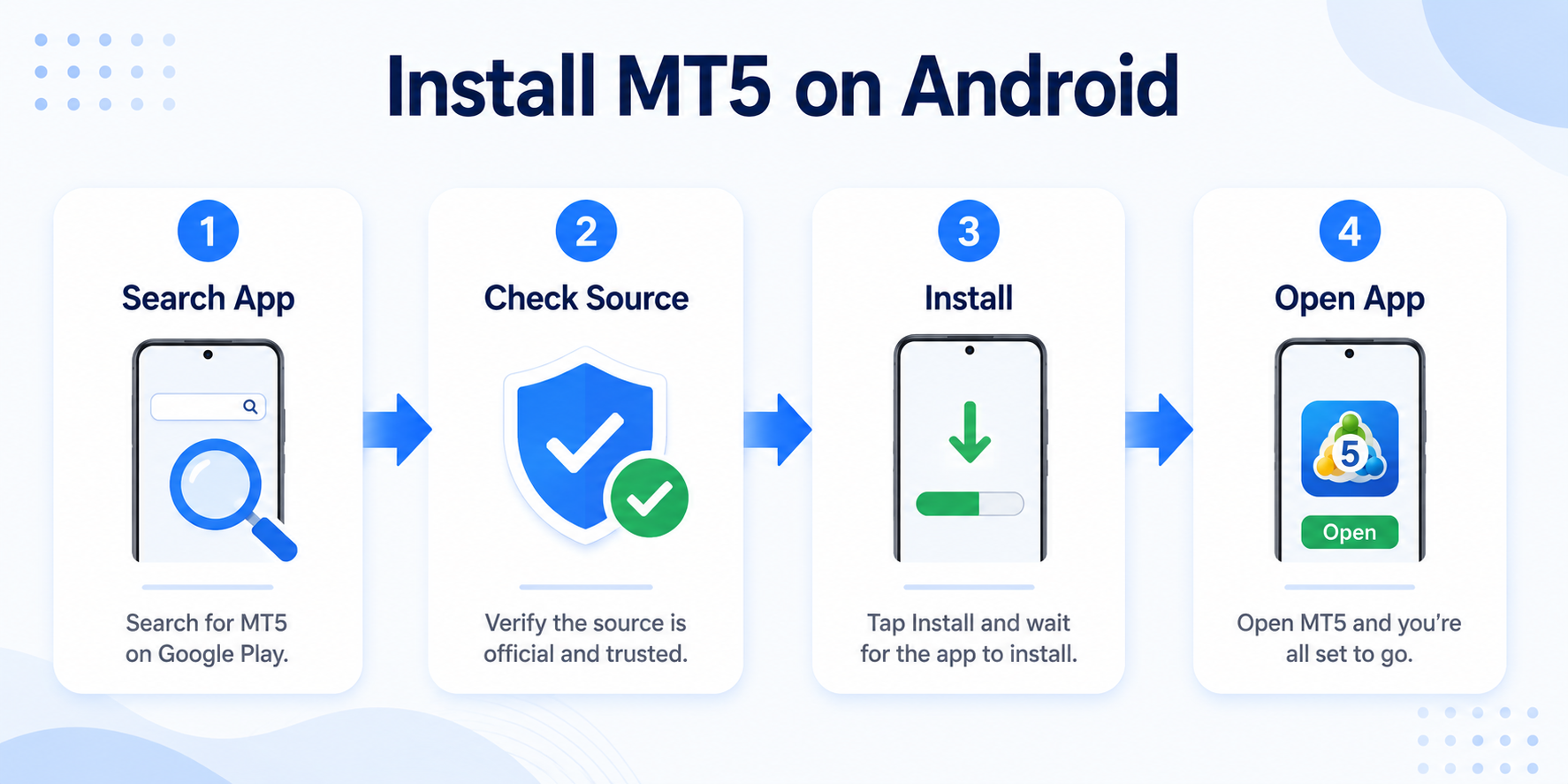
Step 1: Open the app store or official download page
If Google Play works on your device, open the Play Store and search for “MetaTrader 5” or “MT5”.
If Google Play is unavailable, visit the official MetaTrader 5 download page for Android, APK, or other Android-specific options. The official page lists Android, Huawei AppGallery, and APK among its mobile download methods.
Step 2: Verify app name and developer
Before installing, confirm the app name is MetaTrader 5 and the developer is MetaQuotes Software Corp.
Similar-looking apps may appear in stores. Do not install based on icon or keyword alone.
Step 3: Tap Install
After confirming the app details, tap Install. The system will download and install automatically.
Keep the network stable during download. Avoid switching networks or closing the store mid-download. If speed is slow, wait for a stable connection and retry.
Step 4: Wait for installation to finish
When installation completes, the MetaTrader 5 icon should appear on your home screen or app list. Tap the icon to launch the app.
If you cannot find the icon, search your app drawer for “MetaTrader 5” or “MT5”.
Installing MT5 for Android via APK: what to watch for
Some Android devices cannot use Google Play. In that case, you may install MT5 using an APK file.
If you use APK, prefer the file from the official MetaTrader 5 download page. The official site provides an APK entry for phones and tablets.
When installing via APK:
- Confirm the APK source is trustworthy.
- Do not use unknown third-party packages.
- Ensure the file downloaded completely.
- Grant only the install permissions your system requires.
- Disable unnecessary “unknown sources” permissions after installation.
- If the system warns about risk, verify the source—do not force-install suspicious files.
If Google Play is available, prefer the store. APK is mainly for devices without Play Store access when you can verify the file source.
MT5 Android installation steps
Step 1: Locate the install entry
With Google Play, tap Install in the store and the system handles the rest.
With APK, find the file in your file manager or browser downloads.
Step 2: Authorize installation when prompted
Some phones ask whether to allow your browser or file manager to install apps from unknown sources. Only proceed if you trust the file source.
If you are unsure about the package, do not continue.
Step 3: Complete installation
Tap Install and let the process finish. Avoid tapping repeatedly or closing the installer mid-way.
If installation fails, check storage space, OS version, package integrity, and app permissions.
Step 4: Open MT5 for Android
Tap the MetaTrader 5 icon. On first launch you may open a demo account, create a live account, or log into an existing one.
Official Android help notes that first-time users can open a demo account, open a live account, or log into an existing account.
What to check after installation
After installing MT5 for Android, run these basic checks.
Can the app open normally?
Tap the MetaTrader 5 icon and confirm the app launches. If it does not, try restarting the phone, clearing cache, or reinstalling from a trusted source.
Is the network working?
If the app opens but servers do not load, quotes are missing, or login fails, check connectivity. Switch between Wi-Fi and mobile data to see if the environment is the cause.
Do main screens display correctly?
Review the bottom menu and main areas. MT5 for Android includes Quotes, Charts, Trade, History, and Settings—for quotes, charts, trading, history, and app settings respectively.
Do you need to log in?
If you already have an account, choose log in to existing account. If not, explore the demo option or learn the interface first.
A successful install does not guarantee login. You still need the correct account, password, and server name.
MT5 Android main screens overview
After installation, get familiar with these main areas.
Quotes
The Quotes screen shows instrument prices. Available symbols depend on your account and server.
If a symbol is missing, add it in the symbol manager. Confirm the account and server support that instrument before assuming the app is faulty.
Charts
Charts show price action and candlesticks. The mobile app supports interactive charts, indicators, and drawing objects.
Beginners should start by opening a chart, switching symbols, and changing timeframes—add indicators gradually.
Trade
The Trade area shows account status, positions, and orders—including balance, equity, margin, and open or pending orders.
Even if you are not trading yet, use this screen to understand how account information is displayed.
History
History lists past account activity, including completed trades. It is useful when reviewing past operations.
Settings
Settings holds app options, messages, logs, and other entries. You will use it for language changes, log review, and connection troubleshooting.
How to log in after installing MT5 for Android
To log in, you typically need three items: account number, password, and server name.
Your broker or service provider supplies the account and password. The server name must match your account. Wrong server selection can block login even with correct credentials.
When logging in, verify:
- The account number is complete.
- The password is correct, including case.
- The server name matches your account.
- You did not pick a demo server for a live account (or vice versa).
- Your phone can reach the server over the current network.
Login failure does not always mean a bad install. Often the issue is credentials, server, or network.
What if MT5 Android installation fails?
If installation fails, check the following.
Phone OS version
An outdated OS may block install or cause instability. Check whether the store reports device incompatibility.
Storage space
Low storage can interrupt downloads or installs. Free space and try again.
Network environment
Unstable networks can produce incomplete packages. Switch Wi-Fi or mobile data and re-download.
Package source
For APK installs, confirm the file is complete and from a trusted source. Corrupt files may fail to parse or install.
System permissions
Some devices require permission for the store, browser, or file manager to install apps. Without it, installation may not proceed.
What if MT5 for Android won’t open after download?
If the app will not open after installation, try:
- Restart the phone and open the app again.
- Confirm the app installed completely.
- Check whether the OS version meets requirements.
- Free storage space and retry.
- Check whether security software is blocking the app.
- Uninstall and reinstall from a trusted source.
If the app opens but shows no connection, cannot load servers, or login fails, troubleshoot network, server, and account details instead of reinstalling repeatedly.
MT5 Android vs desktop: what’s the difference?
Both are MetaTrader 5 terminals, but they serve different use cases.
Android suits mobile monitoring—quotes, account status, charts, and alerts on the go. Desktop suits longer chart work, multiple windows, templates, and fuller feature depth.
Choose based on habit: phone-first users can start with Android; users who want systematic chart and indicator learning should also use desktop.
Login logic is similar across devices: account, password, and server must match. The terminal version changes the interface, not the account–server relationship.
Tips for beginners downloading MT5 for Android
When downloading and installing MT5 for Android:
- Prefer Google Play, the official site, or your broker’s download page.
- Do not use unknown installers.
- Confirm OS version and network before installing.
- After install, verify the app opens normally.
- Prepare account, password, and server before logging in.
- Successful install does not guarantee successful login.
- When issues arise, decide whether it is a download, install, launch, or login/connectivity problem.
Following these steps reduces confusion from failed installs, login errors, and mixed troubleshooting paths.
FAQ
Is MT5 for Android free?
MT5 for Android is usually free to download and install from Google Play. Whether you can log in, view certain instruments, or use specific features depends on your broker or service provider.
Can I trade immediately after downloading MT5 for Android?
Not necessarily. Installing MT5 only prepares the software. You need a valid account and correct login, password, and server information.
What if I cannot find MT5 in the app store?
Check store region, OS version, and network. Use the official MetaTrader 5 download page for Android, APK, or Huawei AppGallery options.
Does installation failure mean my phone is unusable?
Not necessarily. Causes often include OS version, storage, network, incomplete packages, or permissions. Troubleshoot step by step.
What if I cannot log in to MT5 on Android?
Check account credentials, server name, and network connectivity—in that order.
Usage note
This article focuses on downloading and installing MT5 for Android and is intended for first-time mobile users.
MT5 is trading terminal software for quotes, charts, and related operations. It is not a trading account and does not provide investment advice or return guarantees. Use any trading software and services with caution and at your own risk.
After installing MT5 for Android, you can read How to Download MT5 for iPhone? iOS Installation Guide for iPhone users. If you use Windows, see How to Download MT5 Desktop? Windows Installation Tutorial.